


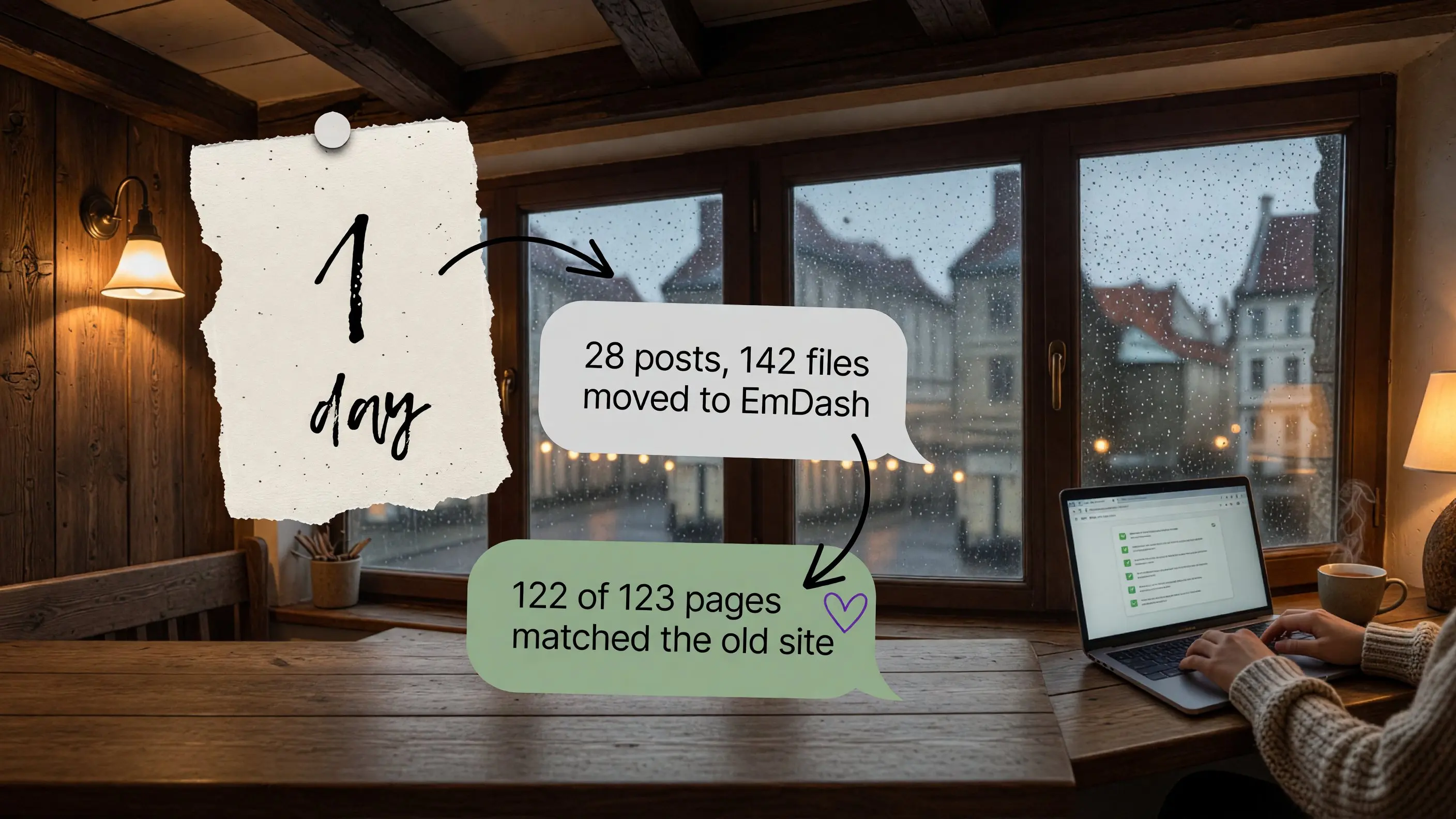
On 28 September 2026 we moved this site, nesmachny.com, from WordPress to EmDash, Cloudflare's open-source CMS. The work started that day and the new site went live at 19:25 the same evening. Every URL was kept.
This is the step-by-step version of that move: what we exported, how the content was converted, how we checked that nothing was lost, and where it went wrong. If you are weighing EmDash against WordPress first, start with EmDash vs WordPress: Cloudflare's Open-Source Successor.
What we were moving
The old site was two applications: WordPress as a headless CMS and Next.js as the front end, on one small server. Before touching anything we took an inventory of production:
What | Count |
|---|---|
Published posts | 28 |
Published pages | 14 |
Tags | 23 |
Media files | 142 (260 MB of uploads) |
Russian translations | 30 posts, 12 pages |
CRM contacts | 9 |
Menu items | 6 |
We also saved a baseline: the HTML of all 120 URLs from the sitemap, with status codes and response times. Everything later was compared against that snapshot.
Do this first, whatever the size of your site. The inventory tells you what you actually have (drafts nobody needs, pages that are not in the sitemap but still answer 200), and the baseline is the only honest way to prove the new site matches the old one.
Step 1. Freeze content and design the schema
From the day of the move, nothing new was published in WordPress. Otherwise you migrate a moving target.
Then the schema. WordPress keeps almost everything in posts and post meta; EmDash wants real collections with named fields. Ours became five collections (posts, pages, products, about, home), one tag taxonomy and one primary menu. The schema is written down in a seed file before any content is imported, and the owner (me) signed it off before step 2.
Step 2. Export and convert the content
We exported production WordPress read-only with a small wp eval-file script into one JSON file. The rendered HTML of each post came from the REST API, because that is what visitors actually saw.
EmDash stores rich text as Portable Text, not HTML. The converter is @emdash-cms/gutenberg-to-portable-text. What we learned:
- Most posts were Gutenberg, four were classic-editor HTML. Classic posts have no
<p>tags until WordPress adds them on output, so we took their rendered HTML instead of the raw content. - The plain HTML converter drops tables and `<pre>` code blocks. Eight posts had tables and six had code. We wrapped the HTML in Gutenberg blocks first, then converted.
- Eight images pointed to `localhost`. They were already broken on the live site. The files existed on the server, so the migration fixed them.
- Modified dates cannot be set through the API. We restored the original WordPress dates with one SQL update, so the sitemap's
lastmoddid not jump to the migration day.
A check script then compared every post with the baseline (tables, code blocks and images, in both languages): zero differences.
Step 3. Rebuild templates, then compare page by page
Templates were rebuilt in Astro so that pages look the same as before. "Look the same" was measured, not eyeballed:
- a comparison script checked 123 pages for title, meta description, canonical, hreflang, Open Graph, Twitter tags and JSON-LD: 122 of 123 matched, and the one difference was intentional;
- screenshots at 1440 px and 390 px had the same page height as the old site, to the pixel.
Step 4. Forms and CRM
The old site sent forms to WordPress plugins and FluentCRM. In EmDash, forms are handled by a plugin and leads go into a CRM inside the CMS. All 9 contacts were imported with their lists, tags and consent dates. Every form was tested before the switch: subscribe, re-subscribe, a bot submission and unsubscribe locally, then real submissions and email delivery on staging.
Step 5. SEO and redirects
- All old redirects carried over, plus trailing-slash handling.
/wp-content/uploads/...links answer with a 301 to the same file in the new media library, so old image links from other sites still work.sitemap.xmlhad the same 120 URLs and the samelastmoddates;robots.txtandllms.txtwere identical to the byte.
Step 6. Staging, then switching the domain
The new site ran on a workers.dev address with noindex while we checked it. Switching meant adding a Worker route for nesmachny.com/*. DNS did not change. Rollback was one action: delete the route and traffic goes back to the old server, which we kept running for 30 days.
After the switch we submitted all 120 URLs to IndexNow and resubmitted the sitemap in Google Search Console and Bing Webmaster Tools.
What changed
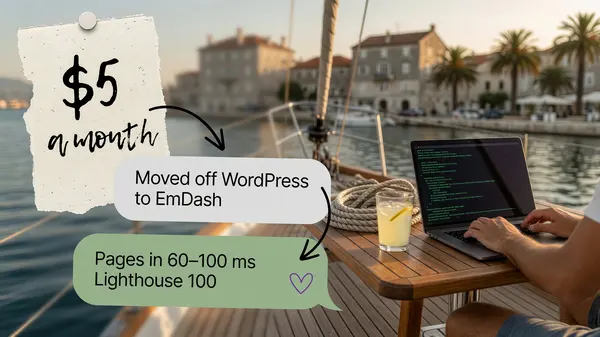
- Speed. Warm pages respond in 60–100 ms. The old site took 0.4–3.5 s on an uncached request. Lighthouse mobile went from 81 to 94 on the home page and from 89 to 100 on a blog post.
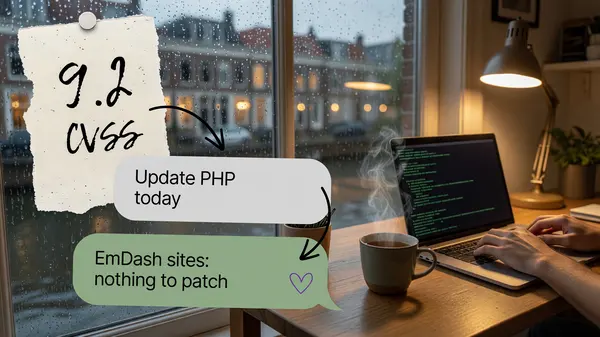
- One application instead of two. One deploy, no PHP, no plugin updates.
- Search did not drop. In Search Console, the second week after the switch was the site's best week for clicks in three months.
- Hosting. The site runs on Cloudflare's Workers Paid plan, $5 a month.
The traps we hit
- Secrets read at build time. The email plugin read its API key through
import.meta.env, which is fixed when the site is built. On Workers it has to come from the runtimeenv. - Image resizing returned 404 for bundled assets (logo, photos) on Workers. We pre-cut WebP versions instead.
- The admin passkey is tied to the host name. A passkey created on the
workers.devaddress does not work on your real domain. Log in with a magic link after the switch and register a new one. - Anonymous routes don't get the CMS's content and email APIs. Form logic has to live in a plugin, and the public
/api/*route calls it.
Should you do it yourself?
If your site is a handful of pages and you are comfortable with Astro, Wrangler and a little SQL, this guide is most of what you need. A site with years of content, several languages, forms and a CRM is where the checks above take the time, because they are the part that protects your rankings.
That is the work we do. WordPress to EmDash migration: a landing page from €490, a company site from €1,490, a portal from €4,900. The final price comes after a free audit.
FAQ
How long does a WordPress to EmDash migration take?
Our own site (28 posts, 14 pages, two languages, forms and CRM) moved in one day, because the schema and scripts were ready. A typical company site takes a few days, most of it spent on checks.
Will I lose my Google rankings?
Not if every URL stays the same or redirects with a 301, and titles, descriptions, canonical tags and structured data match the old site. We compared all of these page by page before switching.
Can I move WordPress plugins to EmDash?
No. WordPress plugins are PHP and do not run on EmDash. Most of what they did (SEO fields, redirects, forms, image optimization) is built into EmDash or done by a small EmDash plugin.
Can I go back if something breaks?
Yes, if you switch with a Worker route and keep the old server running. Deleting the route sends traffic back to WordPress.